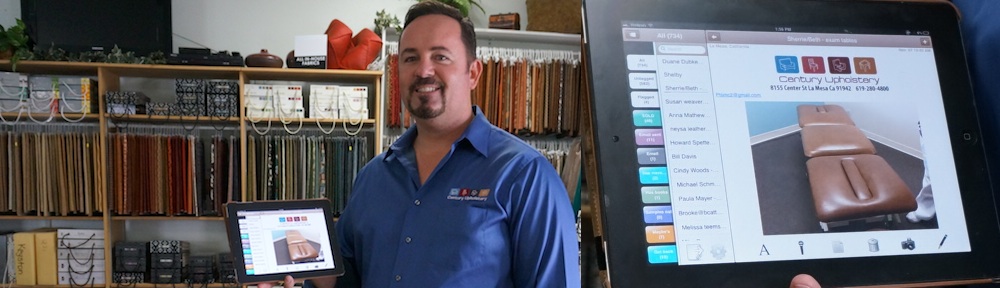
Mental Note 3.0


Mental Note 3.0 offers the ability to undo/redo (shake!), move a section (swipe!), backup to iCloud, transfer notes from any iOS device to any iOS device, and more.

A much requested feature was the ability to move parts of the note around, and version 3.0 delivers that capability. Swipe a section (e.g. a photo), and the section will hover above the note page. A gripper icon will appear on the left side of the section (or in the middle if it’s a sketch). Drag the section by its gripper icon to move it. A red line will indicate where the section may be moved to. Release the gripper icon to complete the move.

Once a section has been moved, you may change your mind and wish to undo the change – simply shake the device, then confirm that you want to undo the move. Shaking the device will allow the most recent changes to be undone (or redone). Undo/redo was also a much requested feature that is now in version 3.0. Undo/redo may be especially useful for the scenario where you accidentally delete a section – now you simply shake the device, and the note will be restored to the way it looked before the deletion.

Long time users of Mental Note will also notice that the home screen icon has changed. With the release of version 3.0 we said goodbye to our initial icon concept and welcomed a new look. All of the Mental Note products have been updated to provide a more unified look: Mental Note for iPad, Mental Note, and Mental Note Lite now all sport the same look.

One of the features we spent a lot of time working on for this release is the ability to transfer a note from any iOS device to any iOS device. That means you can create a note on Mental Note for iPad, and transfer it to Mental Note on an iPhone and it will look the same. Or do the reverse and create on a smaller screen iPod touch or iPhone and transfer to an iPad and the note will look the same. (In terms of tagging, the transferred note will only be tagged the same as the original if the tags already exist in the destination device’s Mental Note.)

To transfer a note, open the Note toolbar by tapping the middle toolbar button (looks like a Note page), then tap the left-most button. Your most frequently used export options will appear immediately, or tap through the various export options to select the one you want. Export in “Note” format to transfer a note to another device.

As always, more features and updates are coming!

Manufacturing – iOS contract

May 2012 – Zymbiotic was contracted to build an iOS app, targeting the iPad, for the creation of personalized, custom designed products. The unique idea required intense design work to flesh out an app workflow that matched the customer’s vision with the capabilities of the iPad. The contract involved creating a prototype product: turning an idea into a real software product that can be demonstrated on the iPad. As the company is currently in an early startup phase, more information is currently confidential but will become available as the company moves through its startup.

How Mental Note uses iCloud (so far)

With the release of iOS5, it is possible to have automatic nightly backups of your device’s data, including all your Mental Note data.

To turn this feature on, ensure these 3 settings are turned On:

Settings -> iCloud -> Storage & Backup -> iCloud Backup On

Settings -> iCloud -> Documents & Data -> On

Settings -> iCloud -> Storage & Backup -> Manage Storage -> your device -> Mental Note -> On

As long as you have switched On iCloud backup for Mental Note (as above), all your Mental Note data will be wirelessly backed up to your iCloud account.

Note that for a backup to occur automatically, the device must be locked (push sleep/wake button, or wait for Auto-Lock to kick in), connected to Wi-Fi, plugged in, and it must be at least 24 hours since the last backup was performed.

Backups can be forced by tapping Settings -> iCloud -> Storage & Backup -> Back Up Now, though you still must be connected to a Wi-Fi network.

If you have Wi-Fi at home, it is possible to setup your device to automatically back itself up around the same time each night. To do this, perform a manual backup around the time you’d like your nightly backup cycle to begin. Then if you leave your device plugged in at home over night, your backup will begin near the same time each night. Even if you are doing nightly backups, we strongly recommend using the built-in Mental Note backup feature whenever possible (see below).

You would make use of this backed up data if:

a.) you lost your device, or somehow lost everything on your device:

Restore your entire device from your iCloud backup (onto your device or replacement device), and your Mental Note data will be restored to your last backup point. (Begin by tapping the Restore button in iTunes when tethered, or from your brand new device’s Welcome screen.)

b.) you accidentally deleted the Mental Note application:

Restore your entire device from your iCloud backup as above, and your Mental Note data will be restored to your last backup point.

We also recommend using the built-in Mental Note backup feature for finer grained control over when data is backed up. In Mental Note Settings, under Backup, tap Create. A backup file with all notes up to that point is created when you tap Create.

Move the created backup file off your device, or wait for it to be backed up to iCloud along with the rest of your data in your nightly backup.

Depending on the number of notes you have stored in Mental Note, these backup files can be large. From time to time, remove old backups by tapping: Mental Note Settings (gear icon), then Restore, and Edit.

Customizing your note paper

Version 2.6 includes an optional feature that allows notes to be created on any type of paper: any background, any colour, any texture. Create notes on paper with your letterhead, or on paper that has your logo as a watermark, or on paper that’s actually a simple form.

In order to use this feature the feature must first be enabled in the Mental Note Paper settings: tap settings (the gear icon) from the list of notes screen, then Paper, and Customize.

Once the feature has been enabled, customizing the paper from settings will affect all notes (e.g. do this if you want a letterhead on all notes). Enabling the feature also adds a new toolbar button to the Note toolbar: Change Paper. Change Paper allows customizing the paper for each note (e.g. removing a letterhead for a specific note).

Paper customization involves selecting an image from your Photo Library and adjusting some basic settings. Any image may be used. (For advanced image creation settings, see here.)

To create all notes on the same type of paper (e.g. a letterhead on all notes):

- Tap the Settings toolbar button
- Tap Paper
- Tap Custom

To change the type of paper for a specific note:

- Open the note
- Tap the Note toolbar button
- Tap the Change Paper toolbar button

Letterheads, watermarks, paper colours/textures, and forms are just a few examples of how this feature can be used. We look forward to hearing ideas from you – please share with us how you use this feature. Want to share a custom paper type that you’ve created with all Mental Note users? Send us an email at support@zymbiotic.com.
