Backup all notes (and tags) to a single file, then move the backup file off your device. Depending on the size of the backup file, you may be prompted to move the backup file off your device using either email, Dropbox, or by sending it to another compatible app that is installed on your device (e.g. Google Drive, Box, etc.).
IMPORTANT: You must move the backup file off the device to ensure the safety of the data. An automatic way to do this is to Use iCloud.
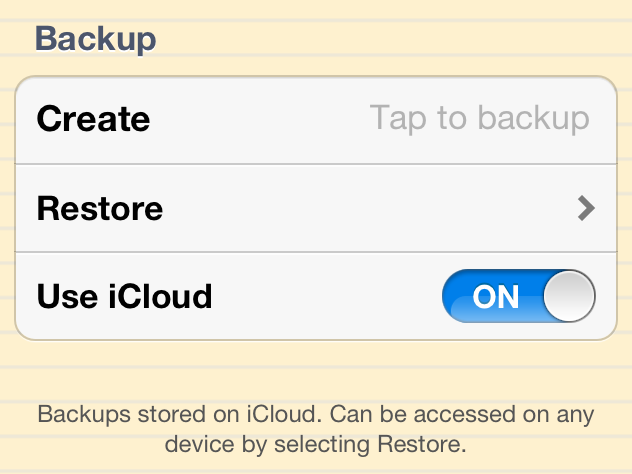
From the list of notes screen, tap the Settings toolbar button (gear icon). Then under Backup tap “Create”.

Moving the backup file off your device
If “Use iCloud” is turned on, the backup file will automatically be moved off your device, assuming you have enough space in your iCloud account. More information about using iCloud with Mental Note can be found here.
Email or sending the backup to a cloud storage solution (e.g. Dropbox, Google Drive, Box, etc.) are both good alternative, manual ways to move the backup file off your device. If the backup file is small enough to be emailed, the Email option will be presented. If the backup file is small enough to be sent to Dropbox, the Dropbox option will be presented. Use the “Other app” option to send the backup file to another installed app, (this will first check if you have another compatible app installed on your device that can accept the backup file).
If the backup file is very large, manually move the backup file off your device by connecting your device to your computer and launching Finder (if using macOS 10.15 or higher), or launching iTunes (if using macOS 10.14 or lower).
If you are using macOS 10.15 (Catalina) or higher, open Finder, select your device (in the sidebar), and click “Files” in the top row. Select Mental Note. Drag any files to a folder on your computer to copy the files.
If you are using macOS 10.14 or lower, in iTunes, select your device (in the sidebar), then click “Apps” (in the top row), and scroll to the bottom. Select Mental Note. Under “Mental Note Documents” you will see any backup files you’ve created (.mno for iPhone & iPod touch, and .mna for iPad). The backup filename corresponds to the date and time the backup was performed. Copy a backup file to a safe place by selecting a backup file and clicking “Save to…”. (Note: you won’t see backup files in this window if they were created while you have the Use iCloud switch turned On.)

Creating a backup file creates a single “restore point” file – a snapshot of all notes (and tags) as of that date and time.
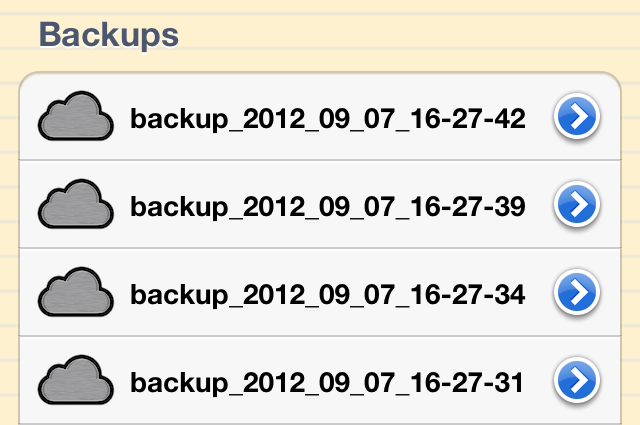
Backup files are initially named with the current date and time, but the names can be changed to indicate a special point in time, or to identify the contents of the backup file. For example, “FreshInstall_emptyNotes”, or “From-iPodTouch…”. To rename a backup file from within Mental Note, tap Restore (from the Backup settings options). A list of the backup files found on your device is presented. Tap Edit, then tap a backup file to rename it.
Backup files can be used to transfer the notes from one device to another device, e.g. iPhone to iPhone, iPod to iPhone, iPad to iPhone, iPhone to iPad, etc. Backup files can also be used to transfer notes from Mental Note Lite to Mental Note, (by default Mental Note Lite allows the creation of backup files only).
Restoring from a backup file means all notes are replaced with the contents of the backup file. Before this occurs, an optional backup of all current notes can (and usually should) be performed.
The Restore option is accessed from Mental Note settings, just beneath the Backup button. The Restore screen can be used to:
- restore a backup file (.mna / .mno, under the “Backups” section) which will replace all notes with the contents of the backup file: tap the backup file to restore
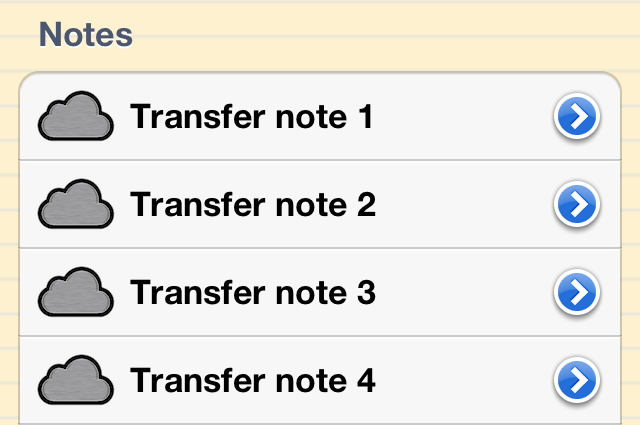
- restore a single note file (.mn1, under the “Notes” section) which will add the single note to your existing notes: tap the note file to restore
- view a summary of the contents and properties of a restorable file: tap the info button on the right edge of the restorable file
- view the location of the restorable file: a file folder icon indicates the file is stored locally on the device; a cloud icon indicates the file is stored in iCloud
- view the type of device that created the backup file: a file folder icon with a tablet image indicates the backup was created on a tablet device (e.g. iPad); a file folder icon with a smaller device image indicates the backup was created on a phone-like device (e.g. iPhone, iPod touch)
- rename restorable files: tap the Edit button, then tap the restorable file to rename
- delete restorable files: tap the Edit button, then the button to the left of the restorable file
In iTunes, the file folders that appear under Mental Note Documents are the result of using the “Export to file folder” option on individual notes. Large notes that can’t be exported using email can be transferred to your computer using “Export to file folder”, (in Mental Note, tap Note, then Export). The exported folder is named with the title of the exported note. Select a folder, then click “Save to…”. The folder will be transferred to the location you specify. Inside the folder you’ll find a PDF of the note as well as a png image of the note, and all of the note’s audio recordings.
To delete file folders or backup files from your device using macOS 10.14 or lower and iTunes, simply select the folder/file in the iTunes window above, and press the “delete” key on the keyboard. iTunes will prompt you to confirm the deletion. If you are using macOS 10.15 (Catalina), right-click the folder/file in the Finder window, and select to “Delete” it. Finder will prompt you to confirm the deletion.




 SeSco Engineering & Building Science is a Civil Engineering firm in Ontario, Canada specializing in investigating, testing, and repairing high rise building exterior wall systems. Company President John Scolieri explains how Mental Note has allowed them to efficiently go digital for on-site inspections and reports:
 When John and his team need to document their findings they can quickly and accurately capture all the information they need for their investigation: photographs of the building exterior, sketched dimensions, typed repair notes. All the raw data and ideas get captured into a page in Mental Note, and can easily be sent back to the office as a PDF in an email, right from the job site.

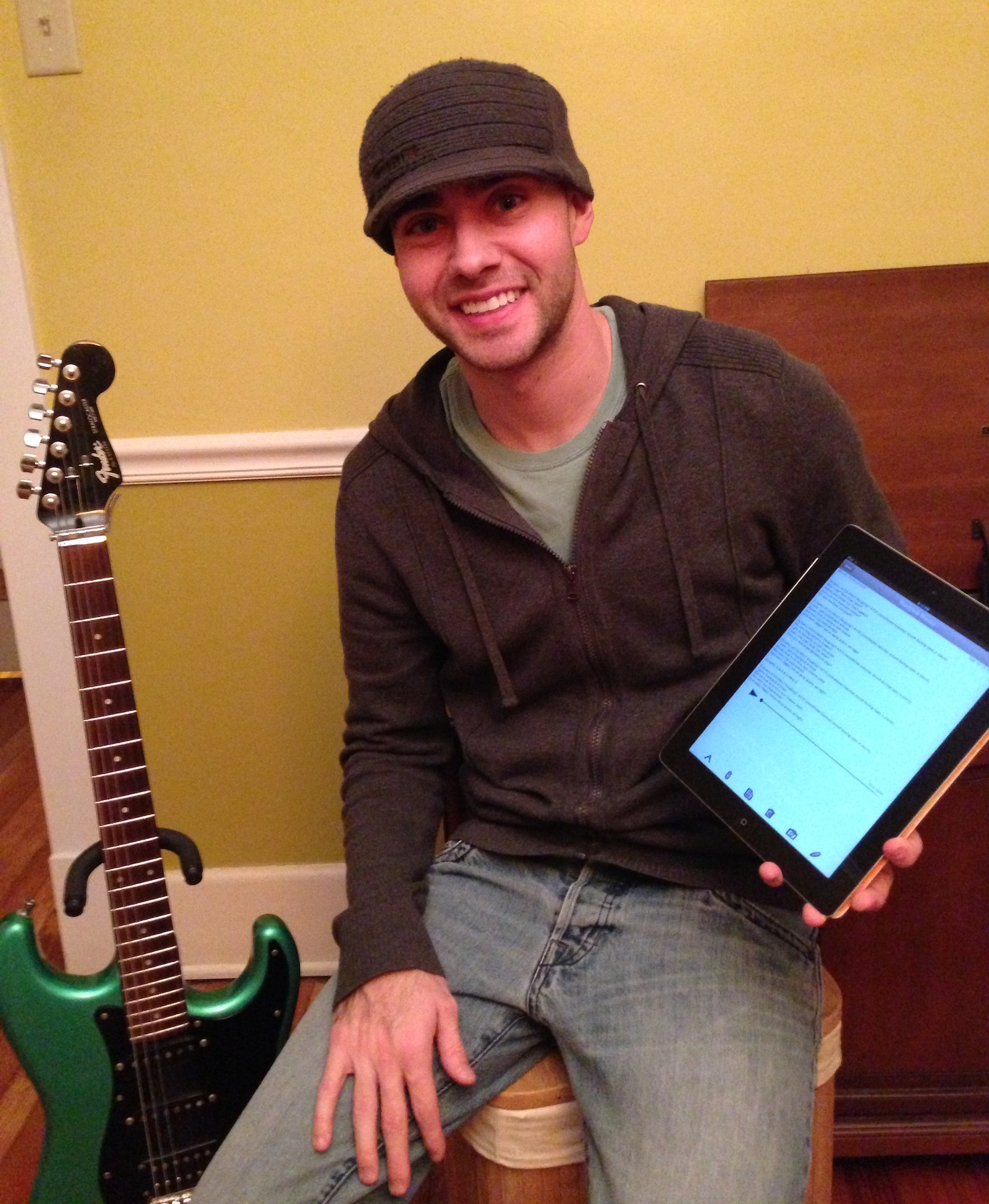 He used Mental Note while composing the songs for his band’s new album, one of which is
 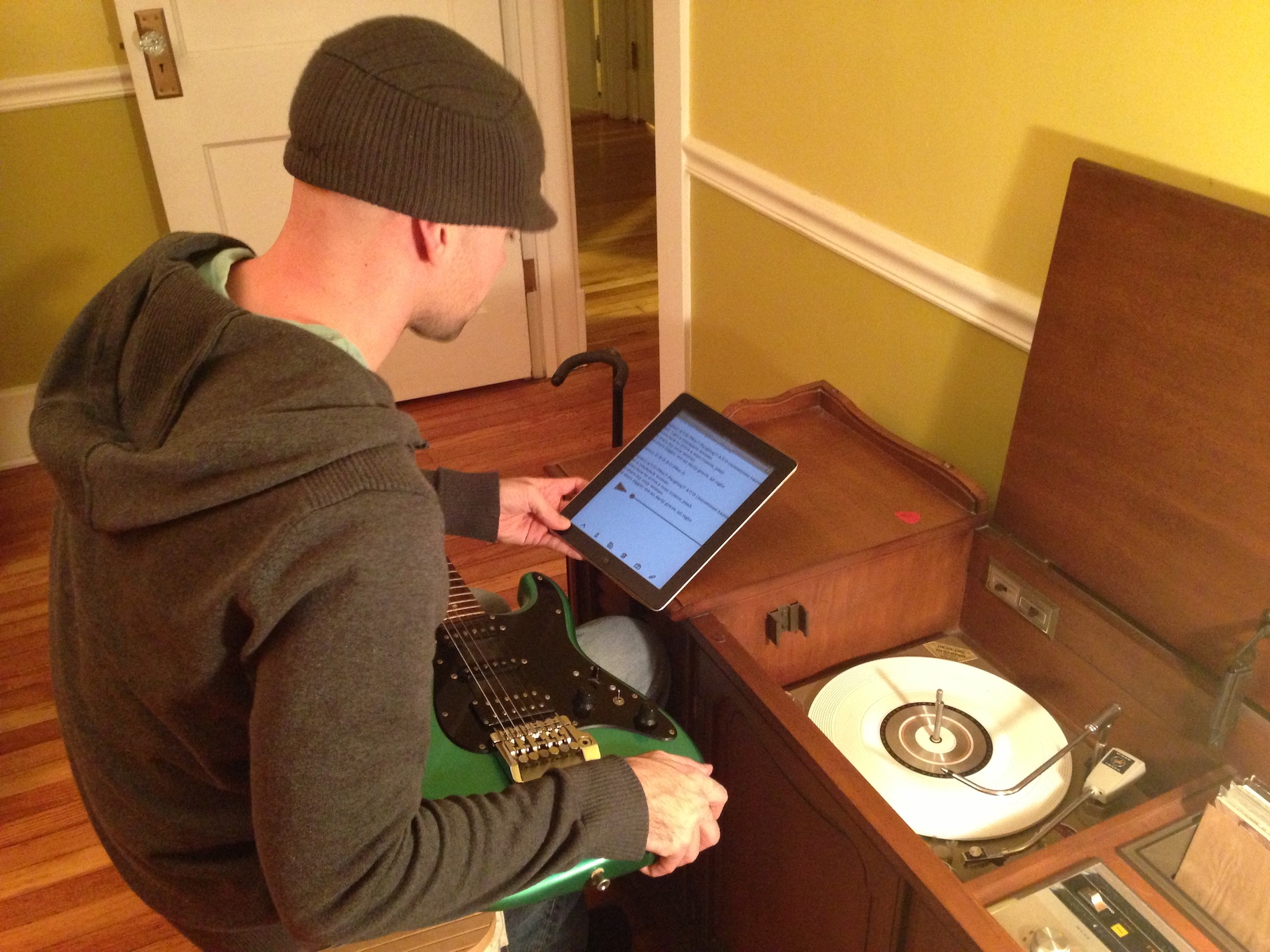 Brainstorming for the creation of a song involves writing lyrics and recording audio clips – and not always in that order. As in any creative process, the ideas spill out, and you try to get everything down, but often it’s just not possible with traditional means. Mark’s use of Mental Note for brainstorming song ideas has produced single notes with well over 100 embedded audio files – and it’s not just audio on the note page. Each Mental Note digital page makes it possible to quickly record multiple audio clips, while typing lyrics around each recording, on a page that has the inspirational photographs you took from earlier in the day mixed with your hand-drawn sketches and annotations anywhere on the page, and it does all this in a very simple, easy to use interface.
 A new export destination has been added called “Other app”. For example, notes can be sent to other cloud storage solutions such as Google Drive, Box, or others. Send notes to apps that can accept the selected format, such as PDF to iBooks. This feature also enables sending a PDF to a compatible printer, or printer app.

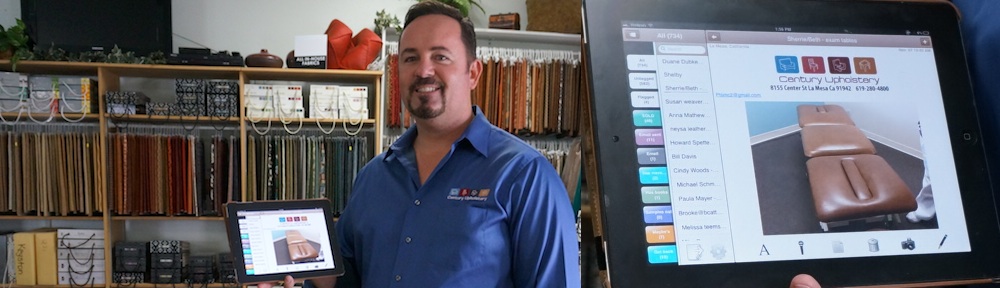
 The job details are documented – photographs are taken, sketches of modifications are made, customer information and job details are captured – all into a single note on a single page in Mental Note. To give the page a professional touch, Ron uses the Custom Paper feature of Mental Note to add the company letterhead to every page. Right then and there a PDF invoice is generated and sent by email to the customer, and back to the Century Upholstery shop – where the notes are used to complete the order. Mental Note – the digital notepad – capturing ideas as they happen for Ron and the team at Century Upholstery.