Mental Note in Education

Mental Note – the digital notepad is being used in classrooms around the world.

Read about how Princeton Day School in New Jersey makes use of Mental Note in middle school classes for English, Science, and Archaeology.

See how students in Chicago Public Schools are using Mental Note in Science and Math class, (additional media here).

See how Math and Science students in the Bronx make use of Mental Note for their projects frequently reported on the @mwMathSci Twitter feed.

Learn about a New York City Public School project involving Mental Note and young students with severe emotional difficulties that won the school a “Best Practices” award from the NYC Department of Education, and a set of iPads from Apple.

A separate version of “Mental Note – the digital notepad” can also be used on iPod touch devices. Normanby Primary in the UK uses Mental Note on classroom iPod touches. They’ve even found a unique way to involve parents with student Mental Note assignments: using the sketch pen, parents sign their child’s homework.

Mental Note appears in UK iPad Teacher Guide
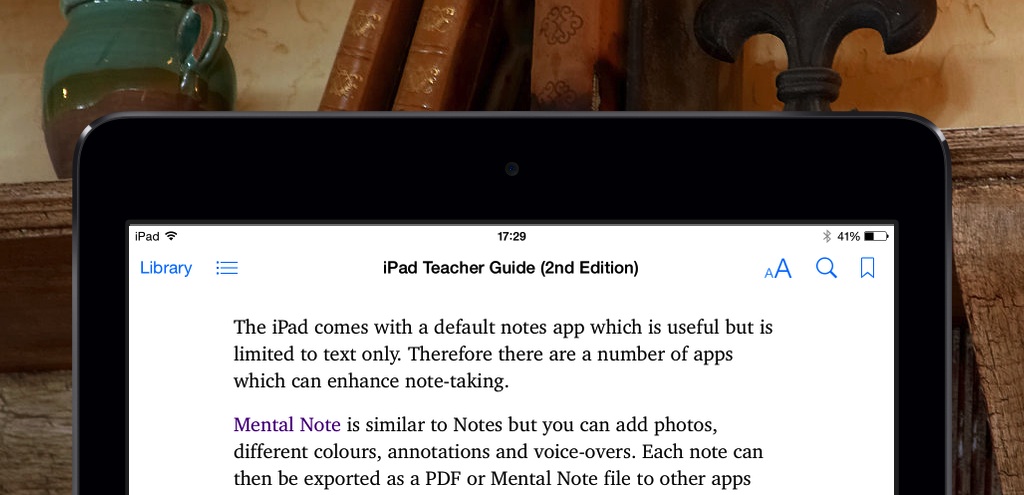
Also in the UK, Apple Distinguished Educator and author, Adam Foster, uses Mental Note in the classroom and has written about it in his “iPad Teacher Guide” (2nd edition Published June 2014).

A number of classrooms in Sweden use Mental Note for iPad, and Mental Note is recommended in a Swedish educational textbook for teachers involved with early childhood education, (Published January 2013): Lär med surfplatta i årskurs 1-3.


We’re always interested in hearing how Mental Note is being used – send us a note and let us know how you’re using Mental Note in your classroom.


UPDATE (September 5, 2012): We are pleased to offer a 50% discount to educational institutions purchasing 20 or more copies of Mental Note for iPad through the Volume Purchase Program.


Mental Note in Business

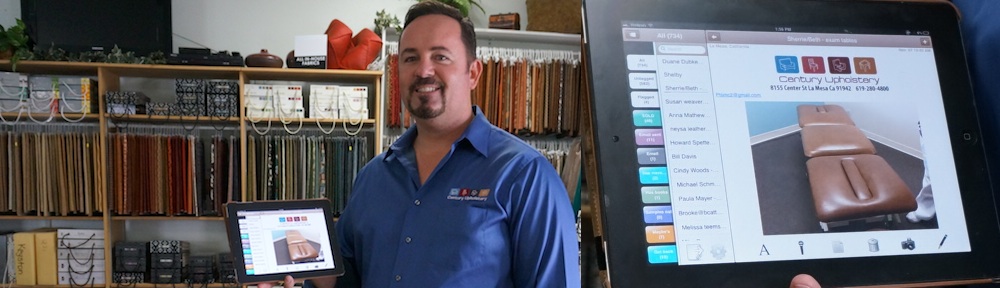
Mental Note @ FASTSIGNSJeff Youngblood and his team at FASTSIGNS rely on Mental Note.

FASTSIGNS provides all different types of signage solutions around the world. Jeff and his team, which focus on Irving, Texas, selected Mental Note for its ease of use. Jeff explains: “Prior to discovering Mental Note, we had information scattered on as many as three apps in our iPhones. Pictures in the photo album, written notes saved in email and text messages, and we used a simple sketch pad app to make diagrams while in the field. Once we discovered Mental Note, we were able to put every detail in one app, Mental Note”.

On any client job it’s important to understand the parameters the client is working in. During an on-site client consultation, Mental Note allows the team to quickly document the site for sign design and installation. Any design and marketing ideas that spring up during discussions go straight onto the note page – whether it’s a photo of the target signage area, a sketch to highlight an important area, or a quick audio clip when a keyboard would take too long to capture an idea.

Notes are geo-tagged with the location the note was created in. This is important as the company expands into other regions and wants to keep track of their sign install base. Searching through notes using location brings up the clients in a particular area. By keeping notes on each installation, the company has created a photo and factual inventory of their clients and their signs.

Back at the shop, the notes collected in the field are then used to brainstorm further design ideas which also get recorded onto the note page. Ultimately the design ideas end up in a developed sign installed at a documented customer site.

Mental Note – the digital notepad – capturing ideas as they happen for Jeff and the team at FASTSIGNS.
FASTSIGNS uses Mental Note

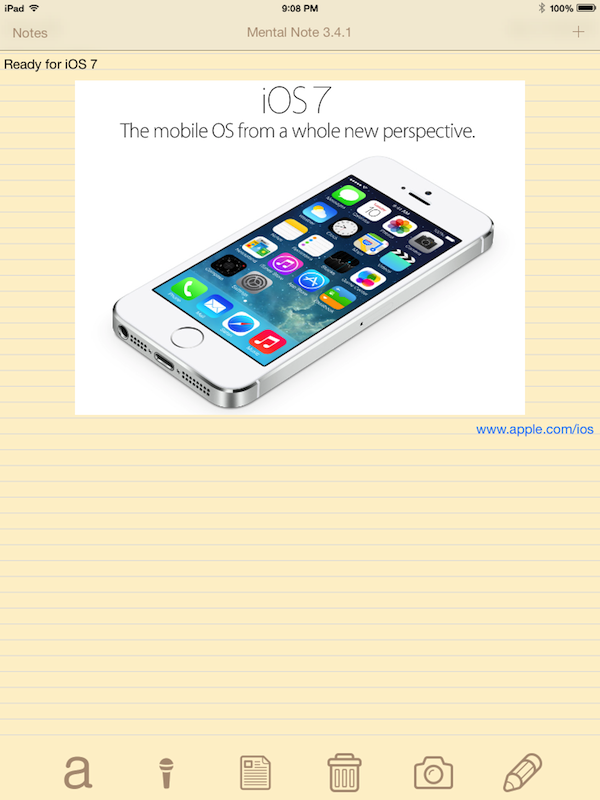
Mental Note 3.4.1: iOS 7 ready

This version of Mental Note is required if you’re running iOS 7. This version also supports iOS 6. Mental Note 3.4.1 comes with a new theme called “Simple”. The previous themes are still available in Mental Note settings > Theme.

Some of our users who have been using Mental Note for years now have amassed a very large number of notes, in some cases thousands and thousands of notes – some of which are very large. Backing up this data is critical, and backup files for these users were stretching certain file size maximums. Mental Note from a very early version has always supported its own backup file strategy. In the event of data loss this can save some time and hassle because complete device restores aren’t always necessary if you have a Mental Note backup file. Mental Note 3.4.1 now includes backup support for very large amounts of data.

Many of you have been waiting for other features, and there are more changes coming soon. We are now shifting back to that work, as it was critical for us to shift focus to iOS 7 compatibility. Please stay tuned for some exciting new features.


A multitude of export options

Mental Note offers many ways to export notes. To begin, open the note you want to export.

Tap the middle toolbar button (it looks like a note page) – this brings up the “note toolbar”. Now tap the leftmost toolbar button – this starts the export.

Choose a format

The export options that appear are the most frequently used export options that you have used. In order to see all possible export options, tap “Export as…”.

The format options will appear (e.g. PDF, text, etc). The options that appear are based on the contents of the note, for example, if there are only images in the note then the Text option won’t be presented.

Audio options

If there are audio recordings in the note, two additional options will appear: “Audio only” and “Zip”. Selecting “Audio only” will allow you to export an individual recording. If you have many lengthy audio recordings in one note, and you’d like to export those all together, use the “Zip” option.

Using the PDF option will also try to export any audio recordings in the note. For example, if you export PDF to Email, a PDF version of the note will be attached to the email, and each audio recording will be attached to the email as a separate audio file.

Note Format

The Note format is a special Mental Note format, readable only by Mental Note. If you send this format to a friend who has Mental Note, that person can add the note directly to their own set of notes.

Choose a destination

The destination options will appear once you’ve selected a format, (e.g. Email, Dropbox, Other app, etc). The options that appear are based on what you have configured in settings. For example, if you don’t have an email account configured, you won’t see the Email option.

Dropbox

If you select the Dropbox option, the data will be uploaded to your Dropbox account. Currently, you need to remain in the app until the file has been uploaded. Once it uploads, a link (URL) to the uploaded file will be placed into your copy-paste clipboard. How could you use this? Let’s say you want to share a large audio recording with a colleague. Let’s say the recording is so large it can’t be sent over email. Select to export “Audio only” to “Dropbox” and choose the individual recording. Allow the upload to complete. Now switch to the Mail app and Paste into the email. The link that appears will allow the uploaded file to be accessed by whomever you send the email to.

Other app

This option allows another app on your device to receive the data you are trying to export. The other app has to be able to accept the format you are trying to export. One example is if you want to send to a cloud storage solution such as Box or Google Drive. Another example is if you want to keep a PDF version of a note in your iBooks app.

File folder

If you select the File folder option, the data will be exported to a folder on your device’s file system. Use iTunes file sharing to extract the data. This is useful when you have really large files to export, and you don’t want to wait for them to be sent over the network; or if you don’t want to send the files over the network. More about this here.

Some examples

Here are just a few of the possibilities of exporting from Mental Note. In each example, open the note you want to export, and tap the middle toolbar button, then the leftmost toolbar button.

  • Share a number of audio recordings that are too large to be sent by email:

Select “PDF” to “Dropbox”, wait for the upload to complete, open Mail app, and Paste. The email recipient will be able to access the PDF and audio recordings by tapping the link.

Or another possibility:

Select “Zip” to “Other app”, select your favourite cloud storage solution app (e.g. Box, Google Drive) and upload to a shared folder.

  • Store the user guide note in iBooks:

Select “PDF” to “Other app”, select iBooks.

  • Collaborate on a note with a colleague:

Select “Note” to “Email”. Your colleague should open the email attachment in their version of Mental Note.

  • Collaborate on a large note with a colleague:

Select “Note” to “Other app”, select your shared cloud storage app, and upload to a shared folder. Once the file reaches the shared folder, your colleague should open the file in their version of Mental Note.

Controlling export document size

Sometimes you just want to simply send your data by email, but the file size is just too large. Usually this means there are lots of images in the note, or lots of audio recordings with long durations.

If there are many pictures in the note, there is a way to adjust the size of photos in the exported PDF. Tap the gear icon at the bottom of the list of notes. This opens the Mental Note settings screen. Scroll down to the “Export” options, and tap “Image Size”, and set that to “Small”.

If you often use audio in your notes, and you find that the size of audio recordings are making your emails too large to send, there is also a setting to reduce the size of audio: scroll to the very bottom of the settings screen, under “Audio” tap “Recording Quality”, and set that to “Low”.

Controlling the format and destination options

There are many options available to export your notes. Fortunately you do not have to always go through the “Export as…” steps each time you want to export. As you use the various export options, your most frequently used options will appear as soon as you tap the export button. “Export as…” will always be there if you need an option you haven’t used in a while, but some people may find that the “Export as…” options have options they know they will never use. In that case there is a way to customize what you see on both the “Select format” and “Select destination” screens.

From Mental Note settings, scroll down to the “Share Options, Formats, and Destinations”. Turn off any options you don’t want to see. Turning off an option here will also hide the option if it has made its way onto your most frequently used screen.

Duplicate and Copy note link

These options, if enabled, are always pinned to the top of the export menu. Tap “Duplicate” to make a copy of the currently opened note. For more on “Copy note link” see here, also did you know you can tap on any of the more obscure sounding setting options in Mental Note settings to get more information about what the option does?

We are always available to answer your questions or comments – send us a note at support@zymbiotic.com, or leave us a comment below.

Mental Note 3.3 + news & reviews

Version 3.3 of Mental Note – the digital notepad is now available. A number of users, including THRIFT’s Mark Malagise, asked us to make some changes to audio that should hopefully make working with audio a lot easier. With version 3.3, it is possible to:

  • Drag to seek
  • Export individual audio clips, or all audio clips – including sending those audio clips to other applications; even zipping all audio so you can send everything up to your favourite cloud storage solution.

A number of other fixes and improvements made it into this release, one of which is the ability to replace a photo with another, for example: You’ve dropped a photo into a note, and have text and other photos around it, and then later you decide you want to swap out one of those photos for another. Now you can swipe, tap Delete, then Replace – and with that you can quickly swap out one photo for another.

Another handy feature is the ability to import text documents from other apps such as from cloud storage apps (e.g. Box, Dropbox).

We are also working on some big features for an upcoming release, so please stay tuned.

We also wanted to share with you some recent news and reviews:

  • More and more educators have started working with Mental Note in their classrooms. A recent conference keynote (EdTechTeacher 2013, Atlanta) discussed some best practices in the science classroom.
  • Recent reviews from users in all different fields from around the world:

Wow! (5 stars)

by Pelterlove – Canada

Très utile pour documenter un évènement dans mon travail. Je prend qq photos, ajoute des notes et dessine où c’est nécessaire. Envoie par e-mail au format PDF et voilà un document d’allure professionnel réalisé en 2 minutes. Très satisfait.


Great notebook- much better than Apple’s (5 stars)

by Photoboi – Canada

I’m GM of a really busy restaurant/ bar in downtown Vancouver. As such, I find myself using my phone’s note feature all day to create quick to do lists, liquor lists, ideas, menu concepts etc etc and while iPhone’s Notes works very well, I hated that there is no safety prompt on the delete. So last night when the bar was really busy I accidentally hit the trash can instead of the next page arrow- one of my most important task lists gone forever, second time this had happened. Mental Note has a three -step delete; hit trash, delete prompt comes up, and a final confirmation. No more lost notes! And I love all the extra features available. Well worth the small outlay for my needs- an essential tool during my always crazy day; my phone’s note function is now basically my brain’s medium-term memory… Great app!


Awesomeness (5 stars)

by peppiesg – Hong Kong

Love it. I have been looking for something like this forever. Waiting for update version (as they always do).


Tolles Tool fürs Songwriting! I love it! (5 stars)

by joeiw – Austria

Ich bin ein Mental Note User von Anfang an und es ist immer noch mein bevorzugtes Tool fürs Songwriting. Es findet eine ständige Weiterentwicklung statt und die Entwickler hören sehr auf ihre User. Einige meiner Feature Requests sind mittlerweile nach Mail Kontakt mit den Entwicklern implementiert – toll. Mental Note ist so einfach zu bedienen und bietet mir die Freiheit, Lieder zu schreiben, ohne große Vorbereitungen zu treffen. Einfach hinsetzen, singen und spielen – Mental Note nimmt es verlässlich auf. Text schreiben und exportieren auf alle möglichen Arten… inkl. Dropbox, icloud, … Von mir gibt es eine klare Kaufempfehlung!


Brilliant handwriting, image, recording & typing app (5 stars)

by nickname approved – Australia

When I use this app – all the time – even other iPhone users are impressed by how quick and easy it is to use, and how smooth the handwriting is. Being able to draw an arrow or directions on a screenshot of a map, and then text or email it to a friend is awesome. Love the variety of export options, especially iCloud sync, option to create Calendar appointment with reminder, and ‘send in Mental Note format’ to other users of this app. And I really like the way it remembers my most-used export options, and pins them at the top. There are other handwriting apps in the AppStore, but Mental Note is so much better, with its uncluttered interface, thoughtful features, and frequent updates – who needs a pen?