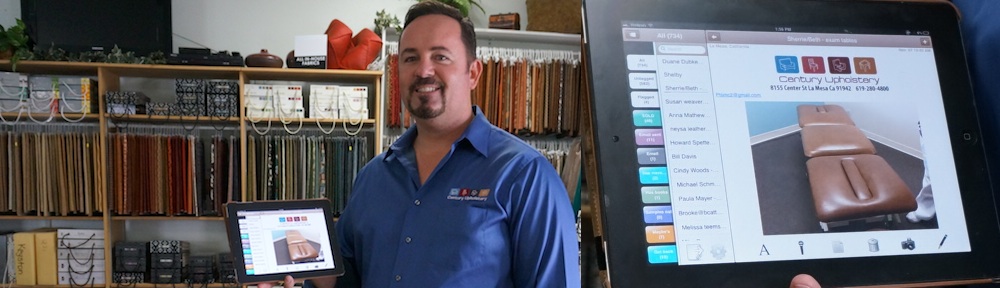
Mental Note 2.6: zoom zoom

Our continuing goal with Mental Note is to make it your digital notepad. Using Mental Note should be like using a (digital) sheet of paper. Version 2.6 offers some important new features that provide both the function and the feel of interacting with a digital note page.

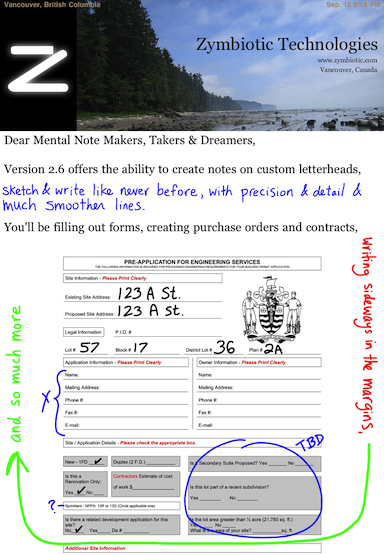
Zoom: With this release we’ve added pinch-zoom of the entire note page. This means sketching is more fun than ever because more sketches can fit on a single page. You can move around the zoomed page while sketching (using a pinch-push gesture), sketches can be very detailed, and the result just looks way smoother – you’ll see your own handwriting on your notes.
Mental Note 2.6
More Zoom: This version of Mental Note for iPad offers the ability to zoom and rotate photos. This means smaller notes and more space to handwrite in the margins. Off-centre rotations give the page a hand-made feel.

Efficiency & Customization: Get more done with Mental Note by using custom paper types, such as pre-made forms or letterheads. This optional feature allows any image to be embedded into the pages of your notebook. Type or handwrite purchase orders, sketch music compositions, create notes on custom letterheads or watermarks. This is an optional feature that not everyone may require. More information about this feature can be found here.

We’ve also added a couple new fonts, a way to link from one note to another, a handy Dropbox upload status indicator, and many other enhancements and fixes.

Mental Note 2.6 is available on the App Store.
Linking notes together

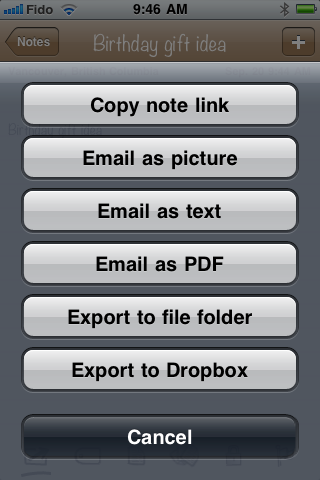
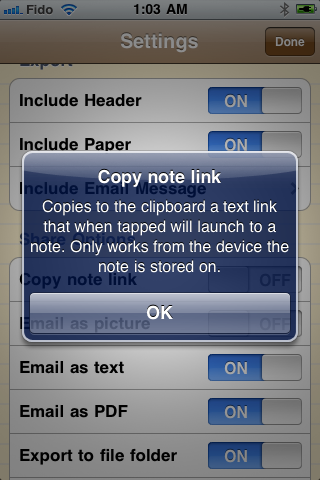
Use this feature to jump directly to another note – either from within a note, or from a different application. The feature is called “Copy note link“, and is supported in version 2.6 on both Mental Note and Mental Note for iPad.

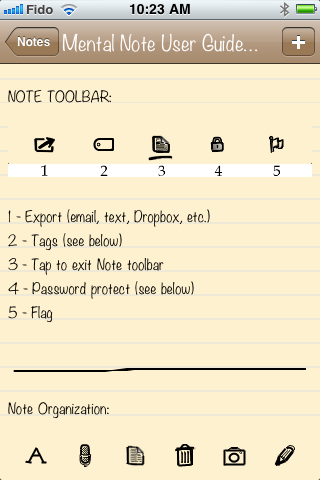
Enable this feature in Settings, under Share Options. The Copy note link option then appears when you tap the Export / Share button on the Note toolbar (middle button to open Note toolbar, then left most button).

When Copy note link is selected, the currently open note’s special URL is copied to the clipboard.

How do you use this special URL? Simply paste it into almost any text field* on your device, and then tap it. (* – Not all text fields are “URL-clickable”; you may have to experiment!)


Here’s an example of creating a link from one application (the Contacts app) to a specific Mental Note:


Let’s say you’ve made a Mental Note about some points to discuss with a particular contact. When the person calls or emails you next, you’d like to be able to quickly jump to the notes you made for discussion. Essentially you’d like to associate the Mental Note with the contact. Here’s how you’d do it:

1. Create the note in Mental Note.
2. Copy note link (tap the Note toolbar button, then the Export / Share toolbar button).
3. Launch the Contacts app.
4. Edit your contact, tap in a new URL field (usually in the 4th group of contact settings after phone number, email, and ringtone), and Paste. Label this URL with a custom label, e.g. “Notes”. Save the changes by tapping Done.

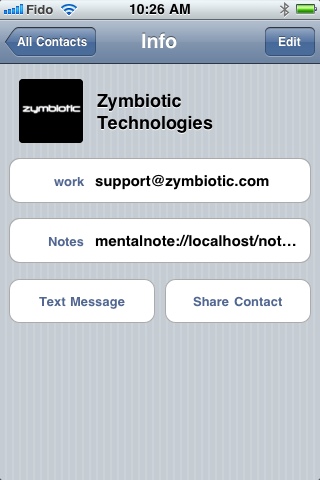
Now you’ll see the special Mental Note link appear in your custom URL field labelled “Notes”.

Tap the “Notes” link, and Mental Note will immediately open to the linked note, (in this example, the User Guide):

Here’s another example. This example demonstrates creating a link from one Mental Note to another.

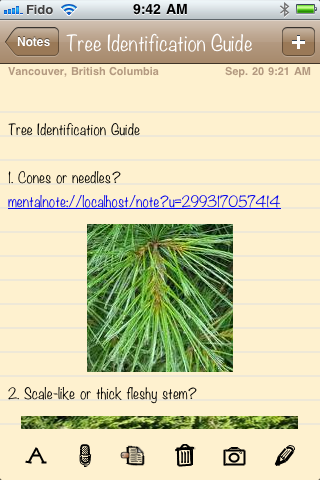
Let’s say you’d like to develop a set of interconnected notes, such as a set of field guide notes used to identify species of trees or insects. Create the note you want to link to, use Copy note link, then Paste into the other note.

Tapping the link immediately opens the linked note. Using this feature you can connect together a number of related notes.

We’d love to hear how you’re making use of note links, or any other feature of Mental Note. Send us an email at support@zymbiotic.com.

(Special thanks to one of our customers – Lee M. – for suggesting using note links as a way to create a field guide.)

Video Surveillance – iOS contract

August 2011 – Zymbiotic was contracted to build an iOS app for remote viewing of live and recorded surveillance video on iPad, iPhone, and iPod Touch. The app won an award from a recognized security professionals publication. This contract involved a complete development package: from design to development to setting up the company’s iTunes App Store presence and deploying the released product to the store.

Import PDF files

Text-only PDF files can be imported into Brainwave using the document conversion tools available in Google Docs. Files with images can also be imported this way although you may need to do some extra editing after importing to make sure they look correct.
First, update your Google Docs settings.

You can also select this option on a per-document basis as you upload so long as you have “Confirm settings before each upload” enabled.

Once uploaded, you will see the original PDF file image followed by just the text for each page. You can delete the images as they will not be needed.

Make sure the collection for the document is set as “Brainwave” and then sync with Brainwave. The note will be downloaded and can now be viewed/edited on your device.

Share your Brainwave notes

Did you know that you can share any of your synced Brainwave notes with anyone who has a Google Docs account. Create a shopping list and share with your significant other. Jot down some ideas to share with your business partners. Take notes during a lecture and share with your classmates.
Just press the “Share” button in Google Docs and enter the e-mail addresses of everyone you want to share with.
All your shared notes will be flagged as such in the documents list.

You can also sync any notes that others have shared with you to Brainwave by adding them to the “Brainwave” collection.

Mental Note 2.5


It’s been quite a while since our last post, as we’ve been spending a lot of time on this next release.

Version 2.5 should appear on the store soon, and it contains some big features.

The much requested links feature is finally making it into this release. This means you’ll be able to type in web links (URLs), phone numbers, addresses, and event dates and times to your notes, and then tap on them. This feature has been in the making for quite some time, and it turned out to be an absolutely huge undertaking to finally get this feature into the product. To everyone that has been waiting for this feature (and we know there are a lot of you based on the requests we’ve received for it), a big thank-you for your patience. It may seem simple, but there is a ton of stuff going on behind the scenes. We have tried our hardest to make links function as you expect them to, and if you’re running iOS4+ you’ll have the best experience with them. Sorry iOS3 users, there is an extra step to make links work for you, (we tried, but believe us, it is very challenging to implement this feature on any version of iOS to date). On iOS3, whenever you open a note the links won’t be enabled, but you can enable them by holding down the text toolbar icon, (the “A” toolbar button) until the links activate

Another much requested feature which has finally made it into this release is reminders. We’ve essentially integrated Mental Note into your device’s built-in Calendar app. When you tap the date area of a note (top right corner), you’ll get the option to create a new event (or edit the event(s) if there are events already associated with this note). Created events will appear on your default Calendar. Any number of events may be associated with a note.

We’ve also added some Dropbox support to Mental Note. Once your Dropbox account is linked you’ll be able to export PDF versions of your note to your Dropbox. You’ll also be able to upload your backup files to Dropbox.

There’s also some enhancements that have been made to deleting a note. We’ve introduced a trash can, (a new Trash tag, actually) so you can restore notes that you may have accidentally deleted.

Current users of Mental Note may find a couple features have moved. One is “Settings”. The gear icon that used to be accessed from a note is now located at the bottom of the list of notes. We felt this made much more sense to move the Settings to a place where all notes are accessed since Settings controls the configuration options for all notes.

The second change you may notice is with the options that appear for the “Export” feature. You may have been used to seeing “Email as photo”, “Send to Twitter”, or others, some of which you rarely, or never used. This list is now configurable from Settings. Turn On the options you use, and Off the options you don’t. With so many export options (we’ve added more in this release!) we decided it was best to let you decide which ones you’d like to see on your Export menu.

Many other smaller features and improvements have also been added, such as the ability to export a note as plain text. We hope you find all of these improvements useful. Keep making Mental Notes, and we’ll continue to keep making Mental Note more and more useful.