Give the gift of Mental Note – now giftable from iTunes

Give the gift of Mental Note – now giftable from iTunes – select your version at http://zymbiotic.com/mentalnoteapps

In iTunes, click the dropdown arrow beside “Buy App”, and select “Gift This App”. You’ll be directed to a page where you can fill out either an email address, or perhaps more personable, print a gift voucher for Mental Note, which you can include in a card you send to the person in your life who

(a.) has paper notes scattered all around their desk / house
(b.) has new ideas all the time
(c.) requires a second brain to store all the things they have to remember
(d.) likes easy to use products
(e.) all of the above

Exercise your creative arts-and-crafts inner-self by customizing and personalizing your gift: print the gift voucher, cut out part of the printout (the code is the important part), paste it to some card stock, and create your own gift card.

Your gift includes unlimited free updates to Mental Note. The person redeeming the gift voucher will be entitled to receive all future Mental Note updates for their version of Mental Note. Each update introduces new features and improvements to the application. Also included is free support just an email away from our support staff at support@zymbiotic.com. Please contact us if you have any questions about Mental Note.

* iTunes requires you to have an iTunes account in order to purchase a gift, (free to setup). Person redeeming the gift voucher requires an iPhone, iPod touch, or iPad to use the product. Please ensure the appropriate version is gifted (iPhone/iPod touch, or iPad). Click the image above to get started.
Screenshots in your Mental Note

Apple included a neat little screenshot feature in your iPad, iPhone and iPod touch. Hold down the Home button, press and release the Sleep/wake button, then release the Home button. The screen flashes for a moment. You’ve just taken a photo of whatever you had displayed on-screen, and saved it to your Photo album. So how can this be used with Mental Note?

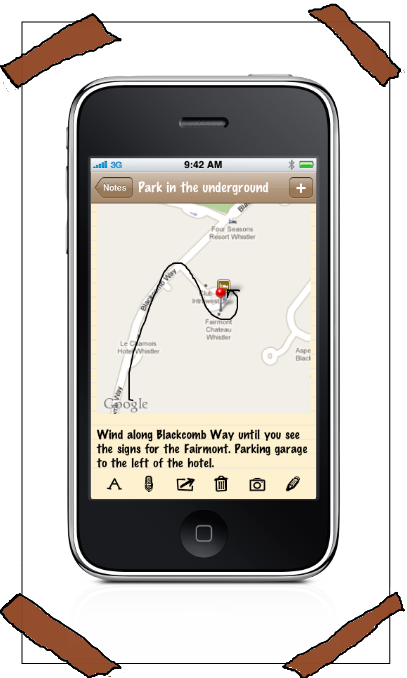
Let’s say you’re creating a note that contains driving directions. From the Maps app, grab a screenshot of the map. Back in Mental Note, create a new note, add a photo, and select the map screenshot. Now you can type detailed driving instructions around the map, or add a voice recording to the note and dictate the driving instructions. Sketch right on top of the map to show a detailed route, and point out exactly where the destination is. Email the complete note to your fellow travellers, or keep it as your own mental note.

That’s one example of creating a note using a screenshot from the Maps app, but you could create a note using screenshots of any app, for example:

  • annotate screenshots of web pages from the Safari app,
  • make notes about your stocks and their trends, and use screenshots of your stocks from the Stocks app,
  • annotate an important point in a conversation using screenshots of a text message/SMS conversation from the Messages app.

Adding annotated screenshots to your Mental Note is as simple as: Grab, Add, and Annotate.

Thanks to Scott (one of our customers) for sharing with us one of the ways he’s using Mental Note. How do you use Mental Note? Send us a note at support@zymbiotic.com.

Mental Note + Griffin Stylus Promotion — save 20%!

Instead of sketching with your finger, it is possible to use a pen-like device called a stylus. To use a stylus with your iPad, iPhone, or iPod touch, you’ll need a special kind of stylus: a “capacitive stylus”.

One example is from Griffin Technology. Purchase Mental Note or Mental Note for iPad in October and receive 20% off a Griffin Stylus! (This offer is also valid for all existing customers.)

SAVE 20% off a Griffin Stylus

WHEN YOU PURCHASE Mental Note OR Mental Note for iPad

Email your Mental Note proof of purchase receipt to promotions@zymbiotic.com and we will send you an electronic coupon to be used when purchasing your Griffin Stylus.

Griffin Stylus: griffintechnology.com/products/stylus

Mental Note: zymbiotic.com/mentalnote

Offer expires Oct 31, 2010

Text Tips

There are a couple of neat features Apple included related to entering text on your iPad, iPhone, or iPod touch.

Looking to position text? We don’t yet support automatic text positioning, but there is a (fun) workaround. Tap with multiple fingers on the space bar.The number of fingers used to tap the space bar will cause that many number of spaces to be inserted at the current cursor position. Tap with 2 fingers and 2 spaces are inserted. Tap with 3 fingers and 3 spaces are inserted. If you can fit 4 fingers on the space bar – yep, 4 spaces are inserted. iPhone & iPod touch users will want to try this in landscape mode.

Want to undo the last thing you just typed? Shake the device. This will only work while the keyboard is visible. A dialog will slide onto the screen and ask you to confirm the undo operation. Repeating the shake action allows you to redo the operation.

Unreadable PDF characters

There have been some reports of unreadable characters in PDF files viewed on Windows machines. If you’ve used the Email as PDF option and the resulting PDF has unreadable characters in it, please try viewing the PDF using the Foxit PDF Reader. Unfortunately this may not solve the issue for everyone.
The fonts installed on Apple devices are not freely available on all systems, (Mac OS has support/licensing for all the fonts, and that’s why this issue is not seen when viewing the PDFs on Mac OS). Because of this, the fonts can’t simply be embedded into the PDF. Instead, the PDF reader software must try to substitute a font with some other font that it knows about if it can’t locate the document’s original font(s). The Foxit PDF Reader seems to do a good job of locating substitute fonts.
We are investigating an alternative way to generate the PDF files for a future release. For the time being though, if you find another PDF reader that fixes the issue for you, or you find a substitute font that fixes your issue, please let us know about it at support@zymbiotic.com.